Montane for Mac
A beautiful image editor for Mac.
Edit photos and screenshots with Montane, a free image editor built for Mac. Crop and resize images, add text and arrows, adjust colors, and convert files—all locally.
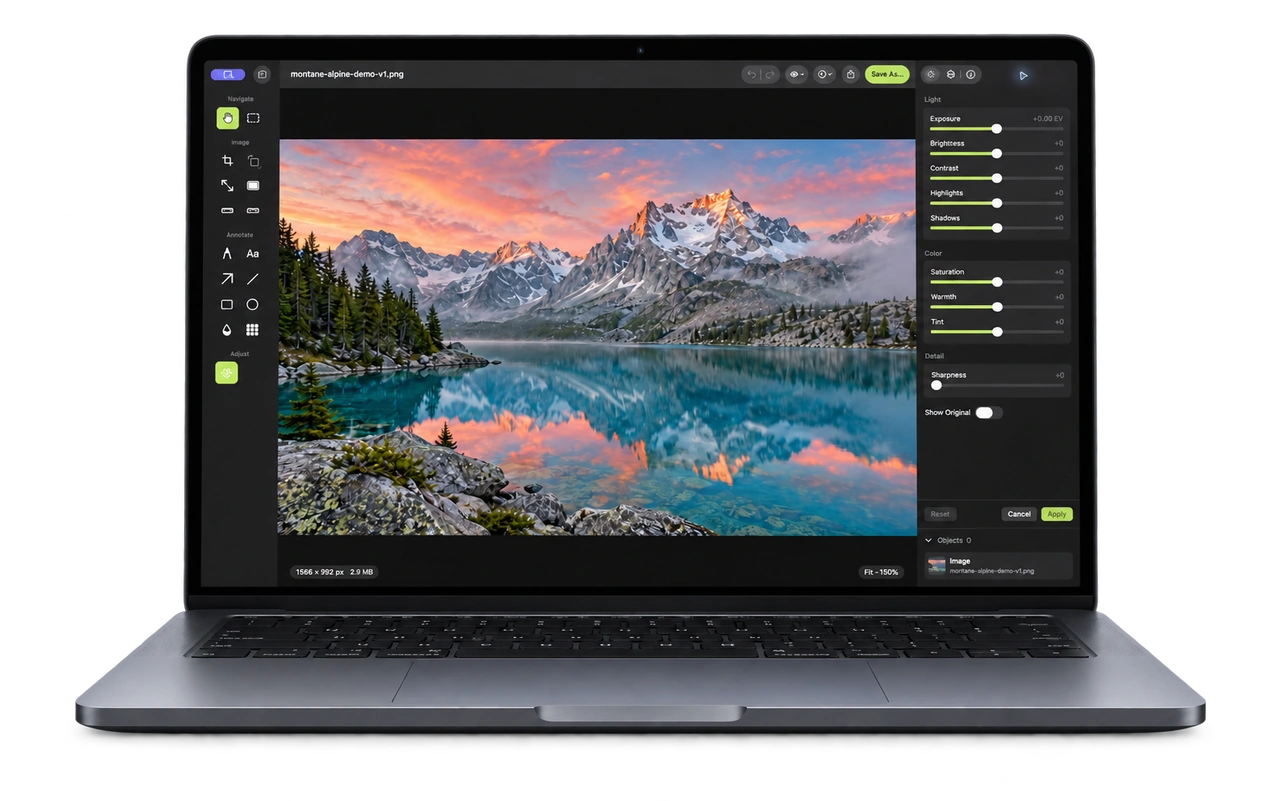
Made for Mac. Down to the details.
Liquid Glass, floating controls, and a clean workspace put your image at the center. Familiar shortcuts, the Mac’s Share menu, and light and dark mode make Montane feel right at home.
Liquid Glass is available on macOS 26 and later.
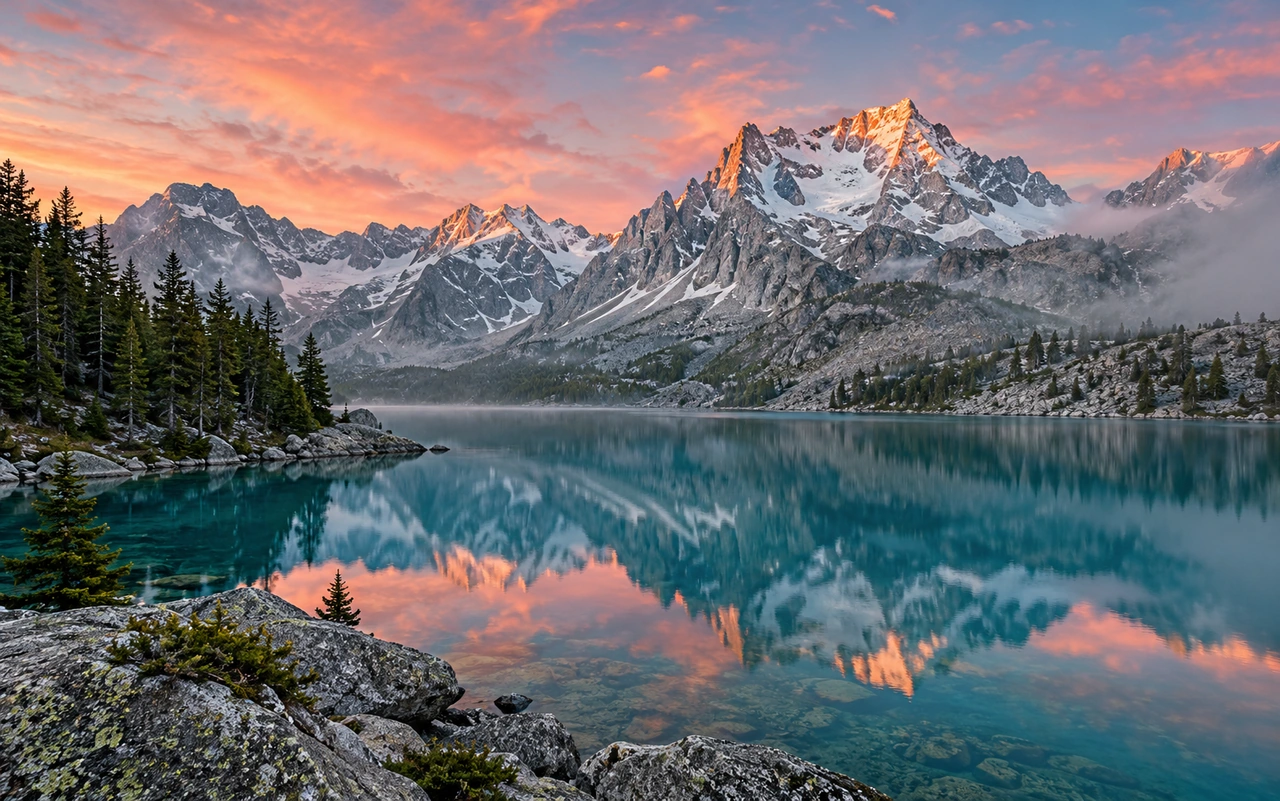
Frame it just right.
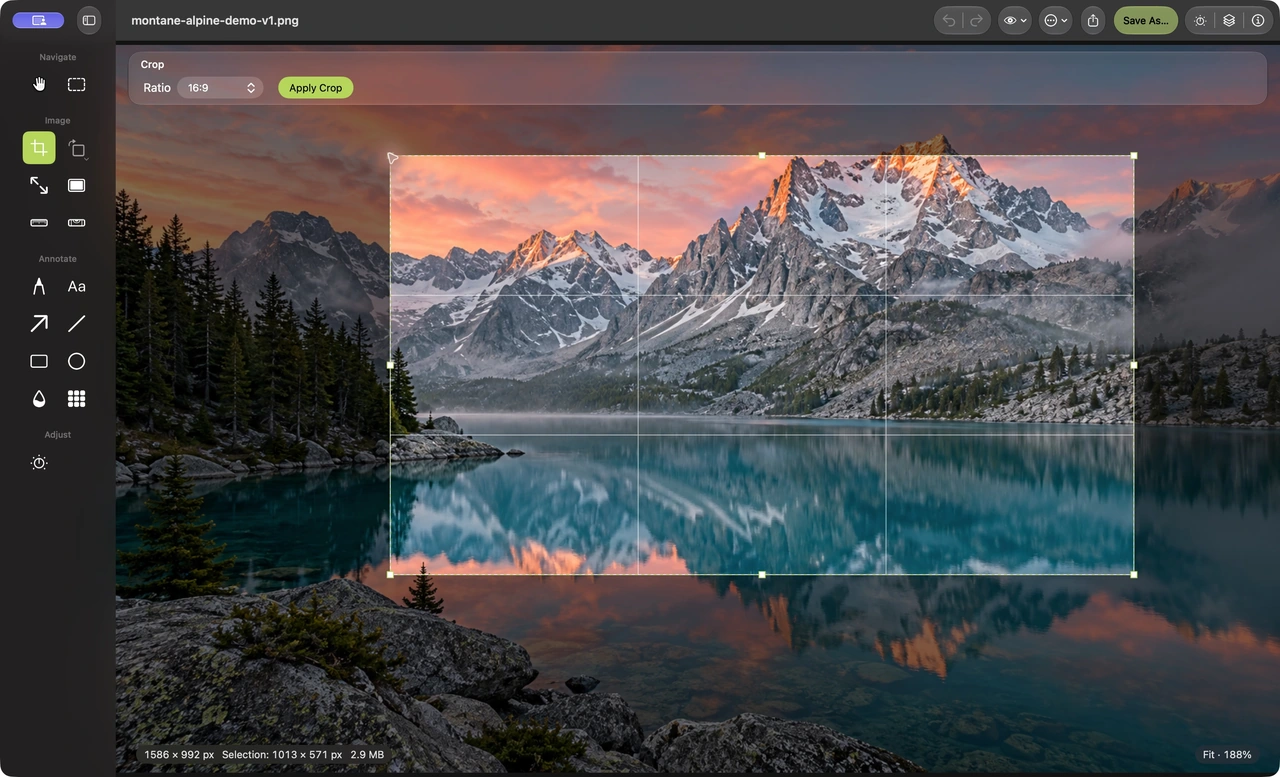
Crop photos or screenshots, straighten the horizon, and resize images to exact pixel dimensions. Keep proportions when you change the size, or choose an aspect ratio when you crop. Get the right fit for a post, presentation, or website.
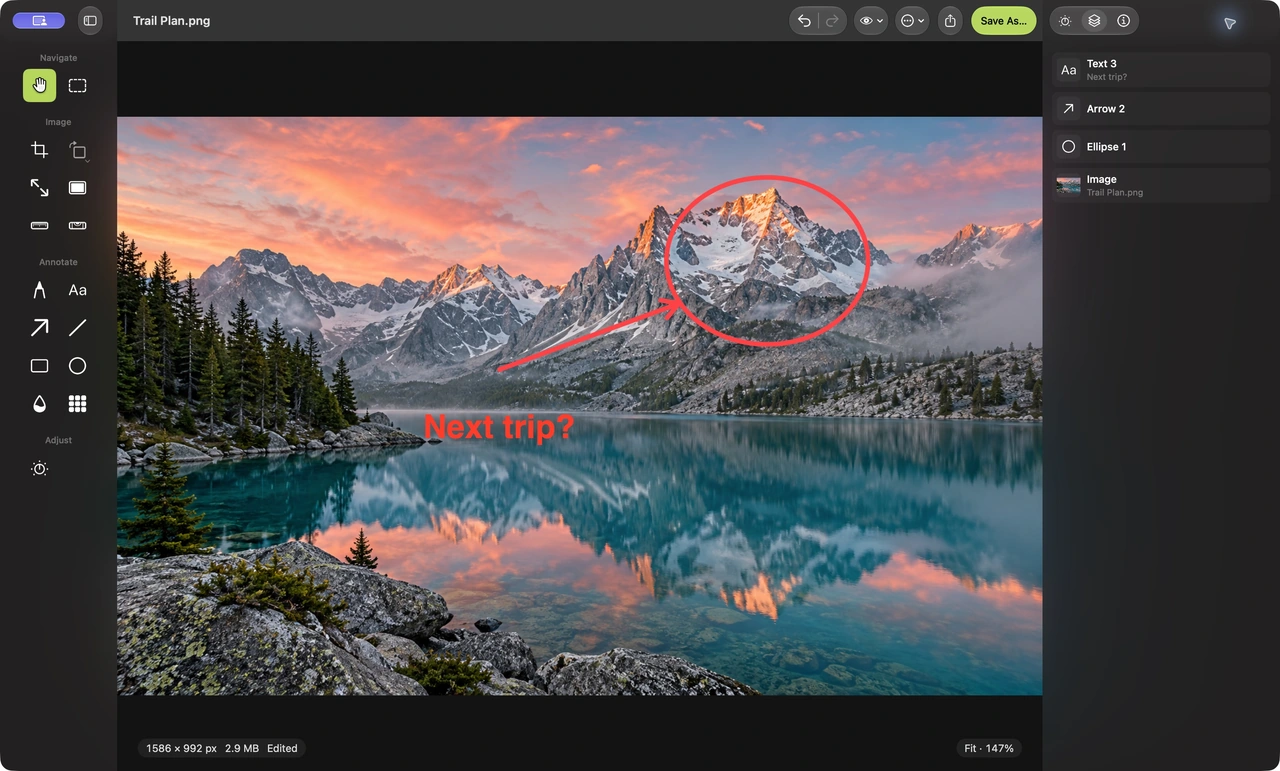
Make your point.
Annotate screenshots with arrows, text, shapes, and freehand marks. Move each object and change its style while your image is open. Make feedback clearer, add a caption to a photo, or highlight a detail before saving a copy.
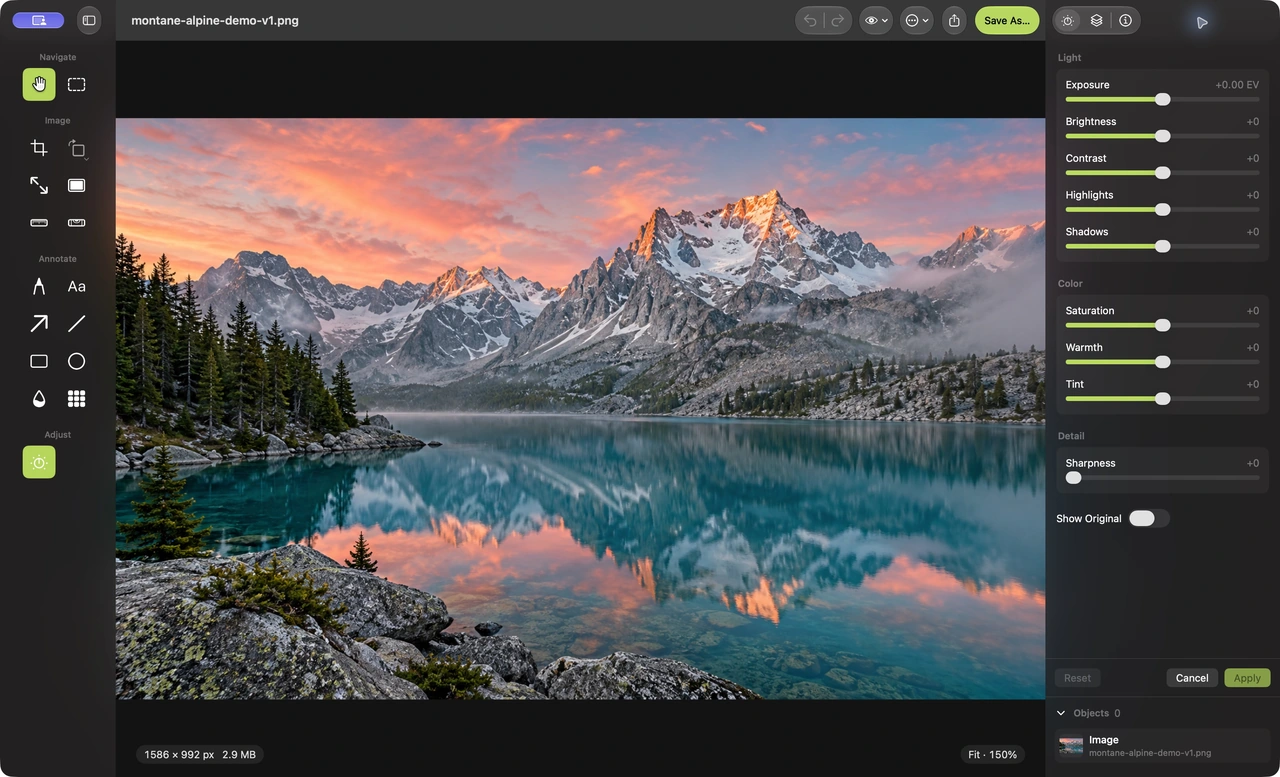
Find the right light.
Bring out the best in a photo with light and color adjustments. Change exposure and contrast, bring out detail in the shadows, or adjust warmth and saturation. Compare with the original as you work, then apply the changes when you’re happy.
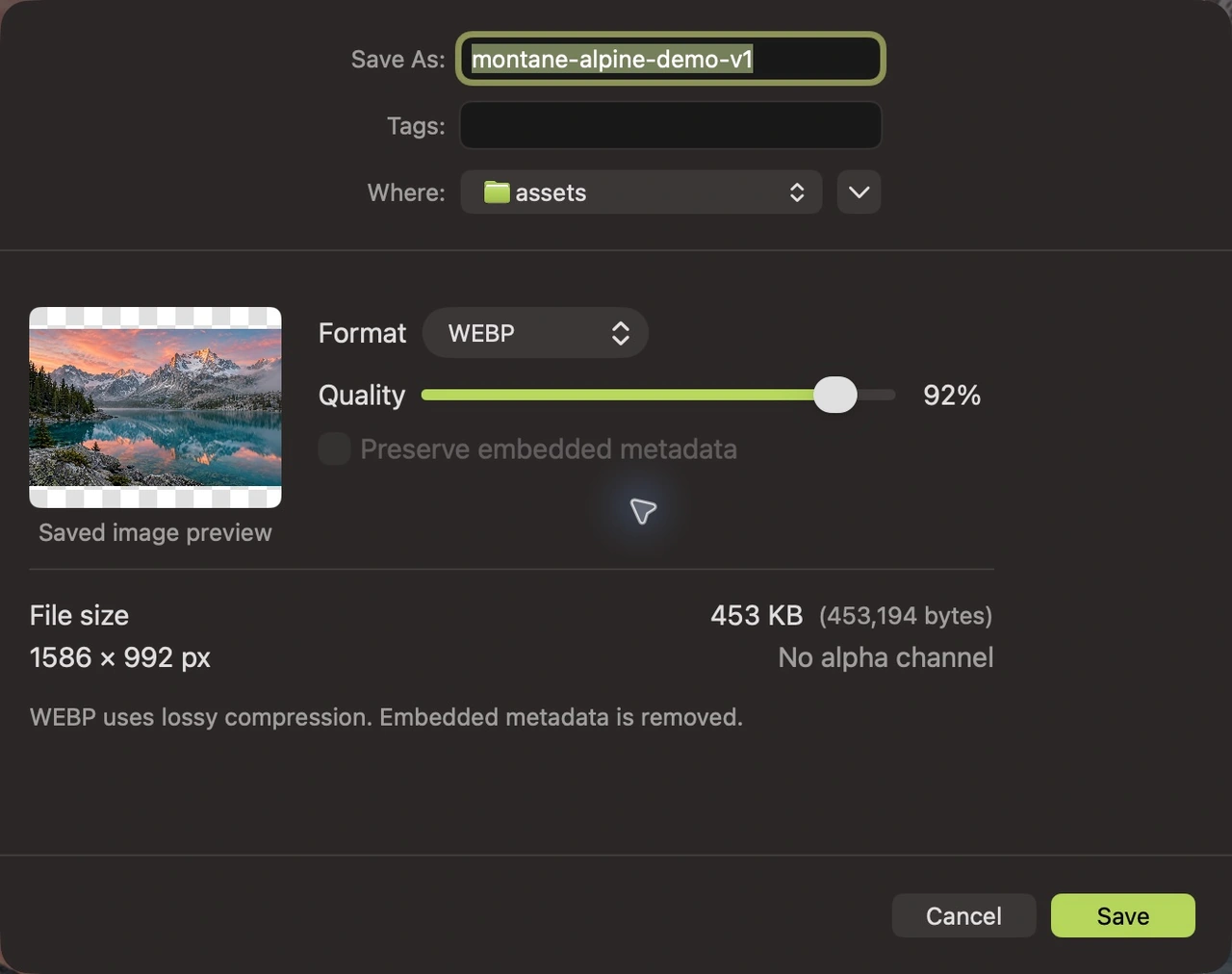
See the result before you save.
Convert images to a format that fits the destination, such as JPEG for a photo attachment or WebP for a website. Preview the exported image and its exact file size as you change the settings. Find the balance between detail and bytes before saving.
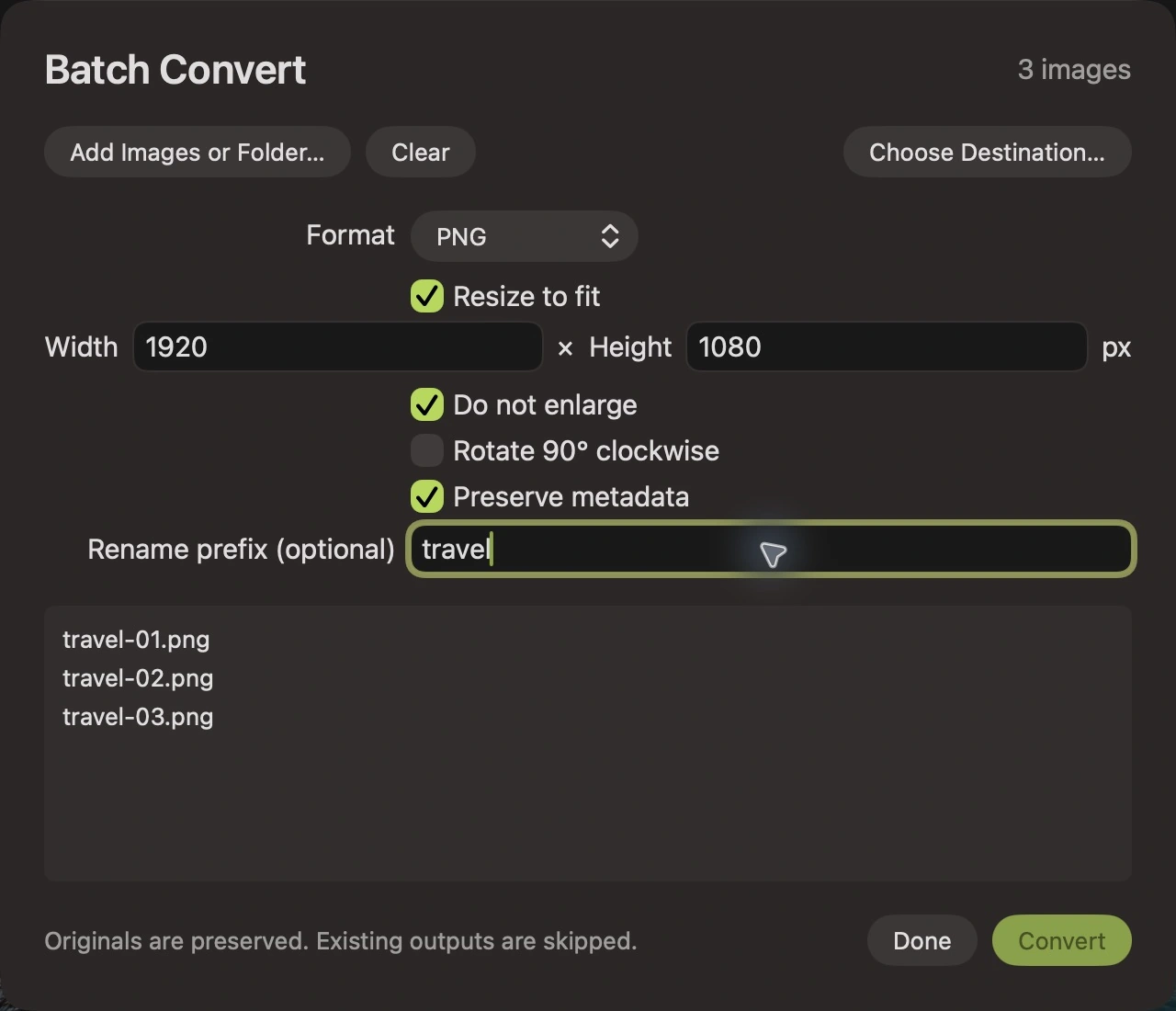
A whole batch.
Ready to go.
Batch convert and resize several images with shared settings. Choose the output format, dimensions, quality, and filenames once, then save the results to a destination folder. Prepare a collection for your website or make a set of photos easier to share.
Your images stay on your Mac.
Open, edit, and convert images right on your computer. No uploads, no sign-up, and no internet connection needed to edit. When you’re preparing a sharing copy, you can also choose not to preserve embedded image metadata during export.

Support
Need help with Montane? Email hello@montane.app.
Include your macOS version, Montane version, and a short description of the problem. You can also browse the guides or find an answer below.
Frequently Asked Questions
Does Montane work offline?
Yes. You can view, edit, and convert images without an internet connection.
Do I need an account?
No. Just open Montane and start editing.
Is Montane free?
Yes. Download Montane for free from the Mac App Store.
Which macOS versions does it support?
Montane works on macOS 14 and later. Liquid Glass is available on macOS 26 and later.
Can I change text and arrows after adding them?
Yes. While your image is open, you can edit text, move arrows, and change their style. When you save and reopen an image, those edits become part of the picture and can no longer be changed separately.
Can I convert several images at once?
Yes. Batch conversion lets you resize and convert multiple images using the same settings.
Can I use Montane to edit photos as well as screenshots?
Yes. Montane works as a photo editor for everyday changes such as cropping, straightening, resizing, and adjusting light and color. You can also add captions, arrows, and shapes. Follow the photo color adjustment guide to get started, and use Save As to keep a separate edited copy.
Which image formats can I export?
Montane exports common formats including PNG, JPEG, HEIC, TIFF, and WebP. Choose a format for the next app or website, then check the preview before saving. If an iPhone photo needs wider compatibility, follow the guide to converting HEIC to JPEG on Mac. For website images, see how to export PNG as WebP.
Your next edit starts here.
Download Montane and make everyday image editing feel at home on your Mac.
Download for free