How to reduce JPEG file size on Mac
To reduce JPEG file size on Mac, open the image in Montane, choose Save As → JPEG, and lower the Quality setting while checking the encoded preview and exact byte count. If the file is still too large, reduce its pixel dimensions and check the export again.
This guide uses Montane, a free image editor for Mac on macOS 14 or later. JPEG compression is lossy, so the aim is a useful balance between storage size and visible detail. There is no guaranteed percentage saving or setting that works for every image.
Start with the actual limit
Find out what the destination needs. “Under 1 MB” is different from “no wider than 1200 pixels.” One requirement concerns encoded bytes; the other concerns pixel dimensions. Some upload forms require both.
If the destination states a strict byte limit, use that value rather than a rounded size label. MB and MiB are different units, and websites do not always explain which they use. Leave a little room below an uncertain limit and test the uploaded file.
Keep a high-quality source. A smaller sharing copy is useful, but it should not become the only version you have. Work from the original for each export attempt rather than repeatedly recompressing a previously reduced JPEG.
Reduce the JPEG using its quality setting
- Open the source. Choose File → Open in Montane. Confirm that you are using the best available version of the image.
- Open Save As. Click Save As or press Shift–Command–S. Give the reduced copy a new name.
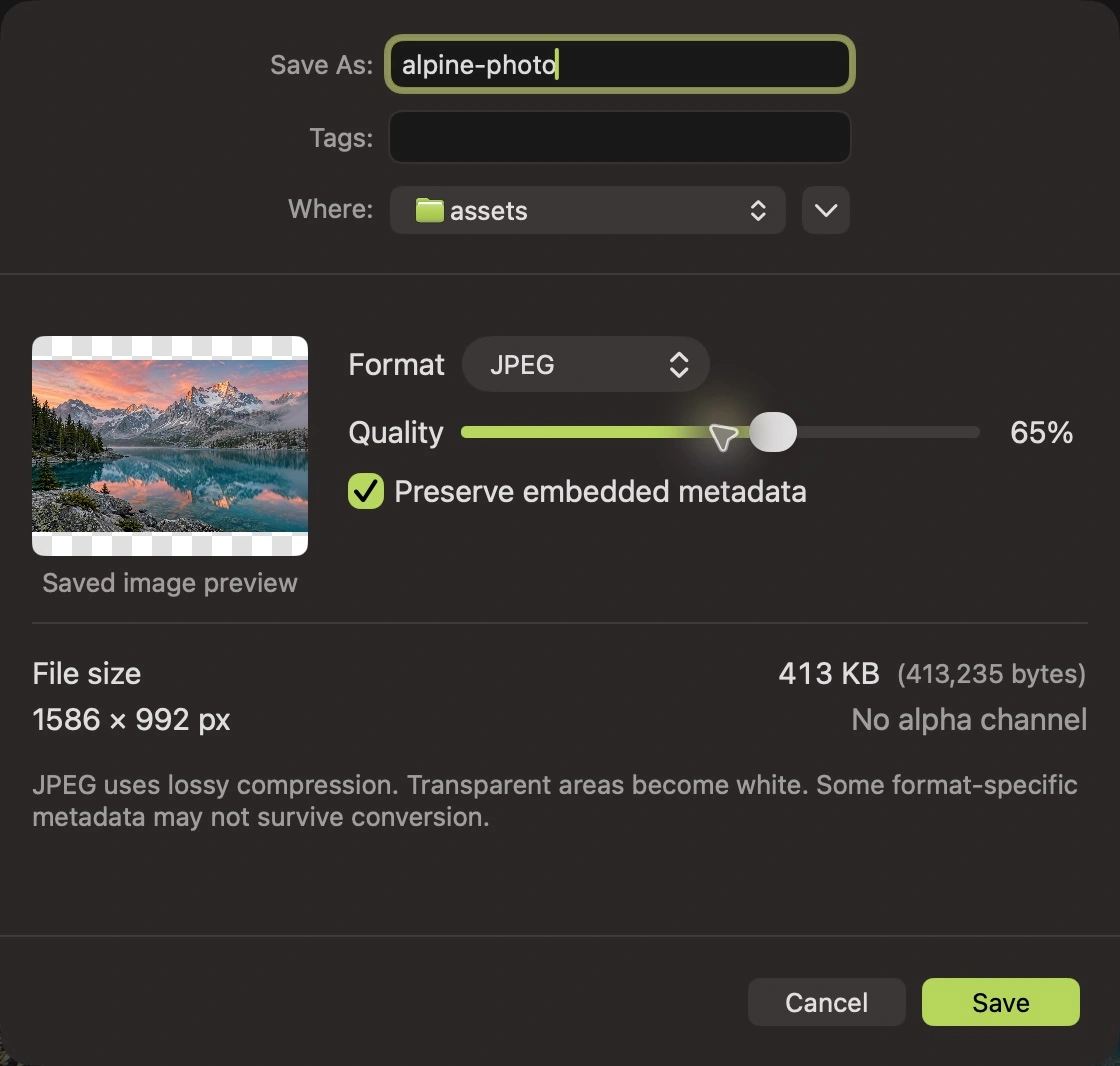
- Select JPEG. Choose JPEG in the format menu. Montane shows a saved image preview, dimensions, and the actual encoded byte count.
- Lower quality gradually. Move the Quality slider down, allow the preview to update, and compare the resulting size with your limit.
- Inspect important details. Look for obvious changes around faces, branches, lettering, sharp outlines, and smooth gradients. Do not judge only by the smaller number.
- Save a candidate copy. Once the byte count meets the requirement and the preview looks acceptable, save the copy and reopen it for a closer check.
- Test the destination. Confirm that the receiving app or upload form accepts the result. If it does not, return to the source and adjust the settings again.
Read the preview as a measurement
In the illustrated alpine example, a JPEG export at 92% quality produced 680,799 bytes. At 65%, it produced 413,235 bytes, with the same 1586 × 992 dimensions. Those are measurements from this particular source and these settings, not a rule about how much a JPEG will shrink.
Another image can behave differently. Large smooth areas, fine texture, existing compression, and dimensions all affect the encoded result. A previously compressed JPEG may barely shrink at a high setting or could even become larger when encoded again.
The preview is helpful because it reflects the output Montane will save for the selected options. After saving, reopening the file still matters: you can inspect the result at actual size and in the context where it will be used.
Reduce dimensions when quality alone is not enough
If the image is far larger than its destination needs, resizing may be a better next step than pushing quality very low. A 4000-pixel-wide photo used in a small email panel often carries more pixels than that layout needs.
Cancel the export dialog, open Resize Image, and choose appropriate dimensions with the aspect ratio locked. The resizing guide explains the tradeoff and the controls. Then open JPEG export again and compare the bytes at a sensible quality level.
You can also crop unused areas if the composition benefits from it. Crop for relevance, not just to chase a number: cutting out useful content is a poor way to satisfy a file-size limit.
Common questions
Can I reduce a JPEG without losing quality?
Montane’s JPEG quality control uses lossy re-encoding. The difference may be small enough for your purpose, but the process is not pixel-identical lossless optimization. Keep the original and inspect the exported result.
Does removing metadata make the file smaller?
It can remove some embedded data, but it is not a dependable substitute for choosing suitable dimensions and quality. If you also want a sharing copy without preserved embedded information, follow the metadata guide.
Can I apply one quality setting to many images?
Yes, with Batch Convert. The same setting will not produce the same file size for every image. If each output has a strict limit, check the results individually.
See the app’s editing and conversion features on the Montane home page, or browse all guides.