How to convert PNG to WebP on Mac
To convert a PNG to WebP on Mac, open it in Montane, choose Save As, select WEBP, and adjust the quality while reviewing the saved image preview. Check the actual file size and alpha-channel status, then save a new copy.
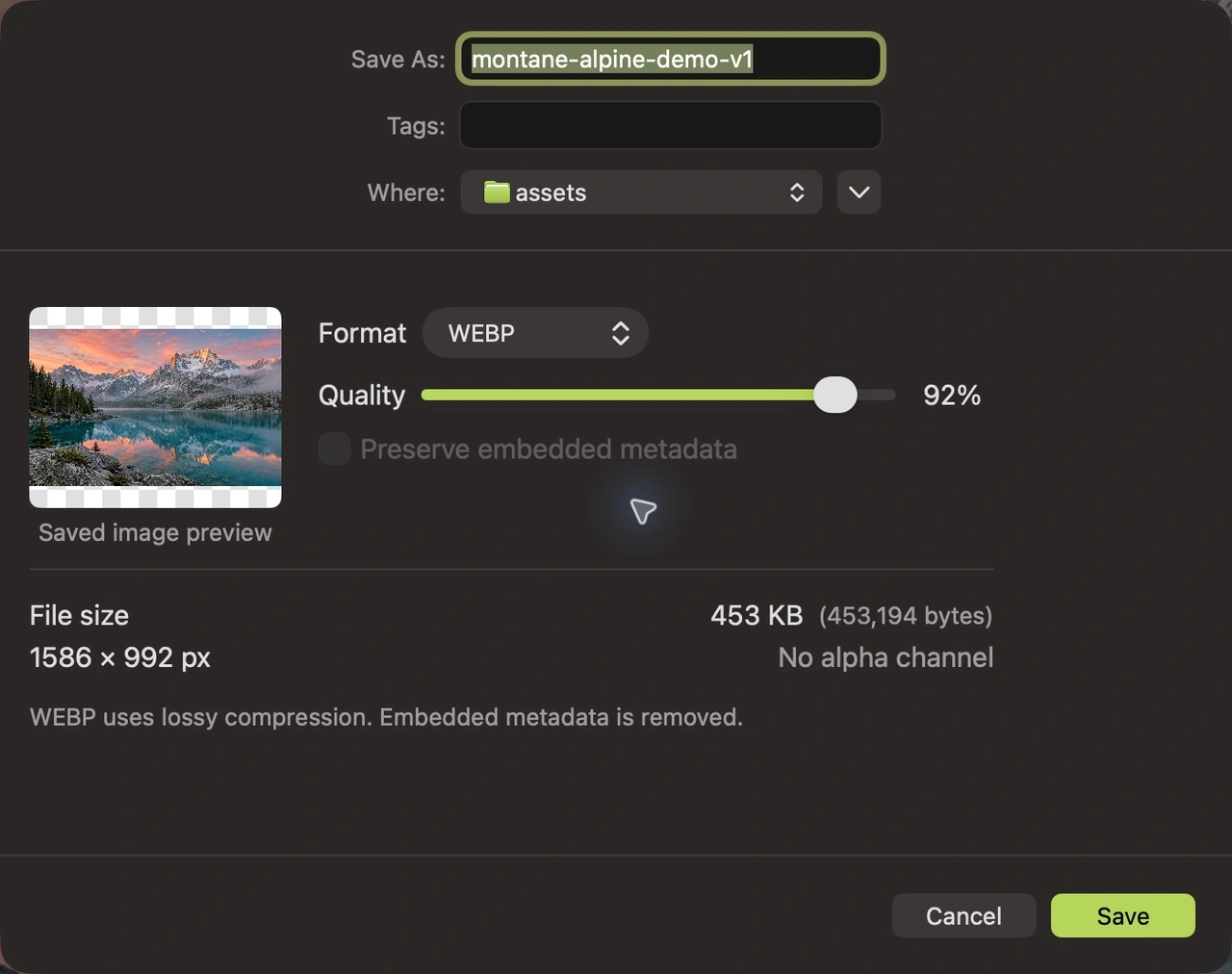
This guide uses Montane, a free Mac image editor on macOS 14 or later. Its WebP export works locally and can keep supported image transparency. The available quality slider produces a lossy WebP export; it is not a promise of a pixel-identical replacement for the PNG.
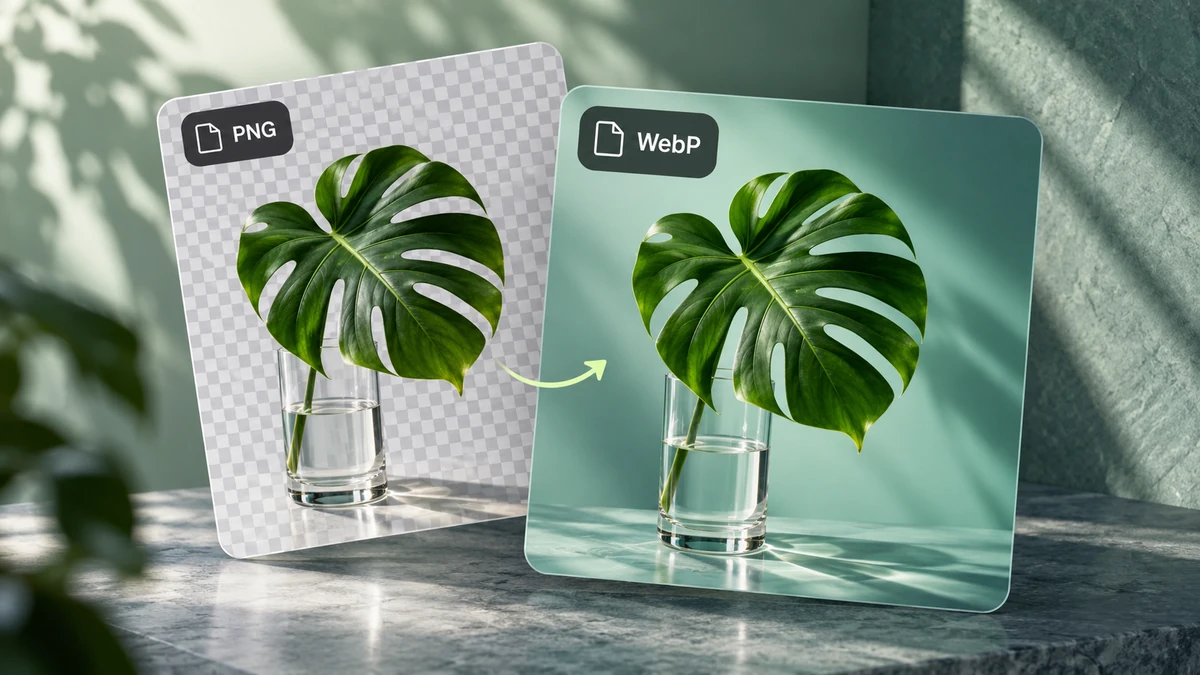
Decide whether WebP fits your workflow
WebP is useful for many website images, including photographs and graphics with transparency. Before converting, confirm that your content management system, client, or receiving application accepts it. A requested PNG should remain a PNG unless the recipient agrees to a different format.
Think about the image itself as well. A photo with soft gradients can tolerate compression differently from a screenshot with small text, a diagram, or a sharp-edged logo. If exact pixels are important, retain the PNG master and inspect any lossy output carefully.
WebP is not guaranteed to be smaller than every PNG. The source dimensions, visual content, and selected quality all affect the result. Montane’s encoded preview lets you make the decision using the file you are actually preparing.
Export a PNG as WebP
- Open the PNG. Choose File → Open in Montane and select the source image. Look for transparent edges or small details you will need to check later.
- Set the intended dimensions. If the destination only needs a smaller version, resize before exporting. Follow the resize guide to keep the proportions intact.
- Open Save As. Click the toolbar button or press Shift–Command–S. Choose a new filename and destination so the PNG master stays available.
- Choose WEBP. Select WEBP in the format menu. Montane updates the saved image preview, file size, dimensions, and alpha-channel information.
- Adjust quality. Start high, then reduce it gradually if the file is larger than you need. Watch for changes around text, outlines, texture, and soft gradients.
- Check transparency. If the PNG contains transparent pixels, confirm that the export reports an alpha channel and inspect the edges of the result.
- Save and reopen. Save the WebP copy, then open it again. Finally, test it in the app or website where it will be displayed.
Keep edges and small text readable
For a photo, inspect the features people will notice: a face, a horizon, the texture of fabric, or branches against the sky. For a graphic, pay more attention to fine lettering and high-contrast outlines. Compression artifacts can be easy to miss in a small thumbnail.
Open the exported copy at actual size when detail matters. Also view it at the size it will appear on the page. These checks answer different questions: whether the pixels survived acceptably, and whether the image communicates clearly in its final layout.
If the result is soft, raise the quality or use a less aggressively reduced version. If it is unnecessarily large, first ask whether you are exporting more pixels than the layout needs. Cropping an image can remove unused areas, while resizing changes the dimensions of the whole image.
Understand WebP metadata handling
Montane’s WebP output omits embedded metadata. The metadata-preservation control is therefore unavailable for that format. If your workflow relies on embedded attribution or other information, keep a suitable original and record the needed credit separately.
Removing embedded metadata does not remove information visible in the picture, and it does not make the filename anonymous. The image metadata guide explains the distinction and the checks to make before sharing.
Common questions
Will a transparent PNG stay transparent?
Montane supports alpha in WebP output. Check the actual encoded preview and reopen the result, especially around partially transparent edges. Transparency is different from the quality of the visible color pixels.
Should I convert every website image to WebP?
Choose formats according to the publishing workflow and the image’s needs. Keep source files, compare the output, and confirm that the destination accepts WebP. A smaller file that damages important text or loses required information is not a useful improvement.
Can I convert a folder of PNG images?
Yes. The batch conversion guide covers applying a shared format and optional resize settings to multiple files. Inspect representative outputs before committing a large collection to a particular quality level.
Explore Montane’s Mac image tools or return to all guides for another task.