How to remove embedded image metadata on Mac
To export an image without preserving embedded metadata on Mac, open it in Montane, choose Save As, and turn off Preserve embedded metadata. Save a new copy, then inspect the exported file before sharing it. Montane’s WebP output omits embedded metadata automatically.
This guide uses Montane, a free image editor for Mac on macOS 14 or later. It covers embedded image information. That is narrower than removing every piece of personal information associated with a file, a photo, or a sharing service.
Understand what metadata means here
An image may contain embedded fields such as camera details, capture time, descriptive text, or location information. Not every image contains all of these fields, and the available information depends on the source and format.
These fields are separate from what you can see in the pixels. Turning off metadata preservation will not erase a street sign, a face, a name displayed in a screenshot, or an address printed on a document. Review the visible image separately before deciding to share it.
The filename and filesystem information are separate too. A file called private-client-address.jpg still has that revealing name after an export with metadata preservation disabled. A service may also associate its own information with an upload. Treat the export option as one part of preparing a sharing copy.
Export without preserving embedded metadata
- Open the original. Choose File → Open in Montane. Keep the original in its existing location if you want to retain its capture information for your own use.
- Review the visible content. Look for names, locations, documents, reflections, or screenshot details that are not appropriate for the recipient. Address those separately.
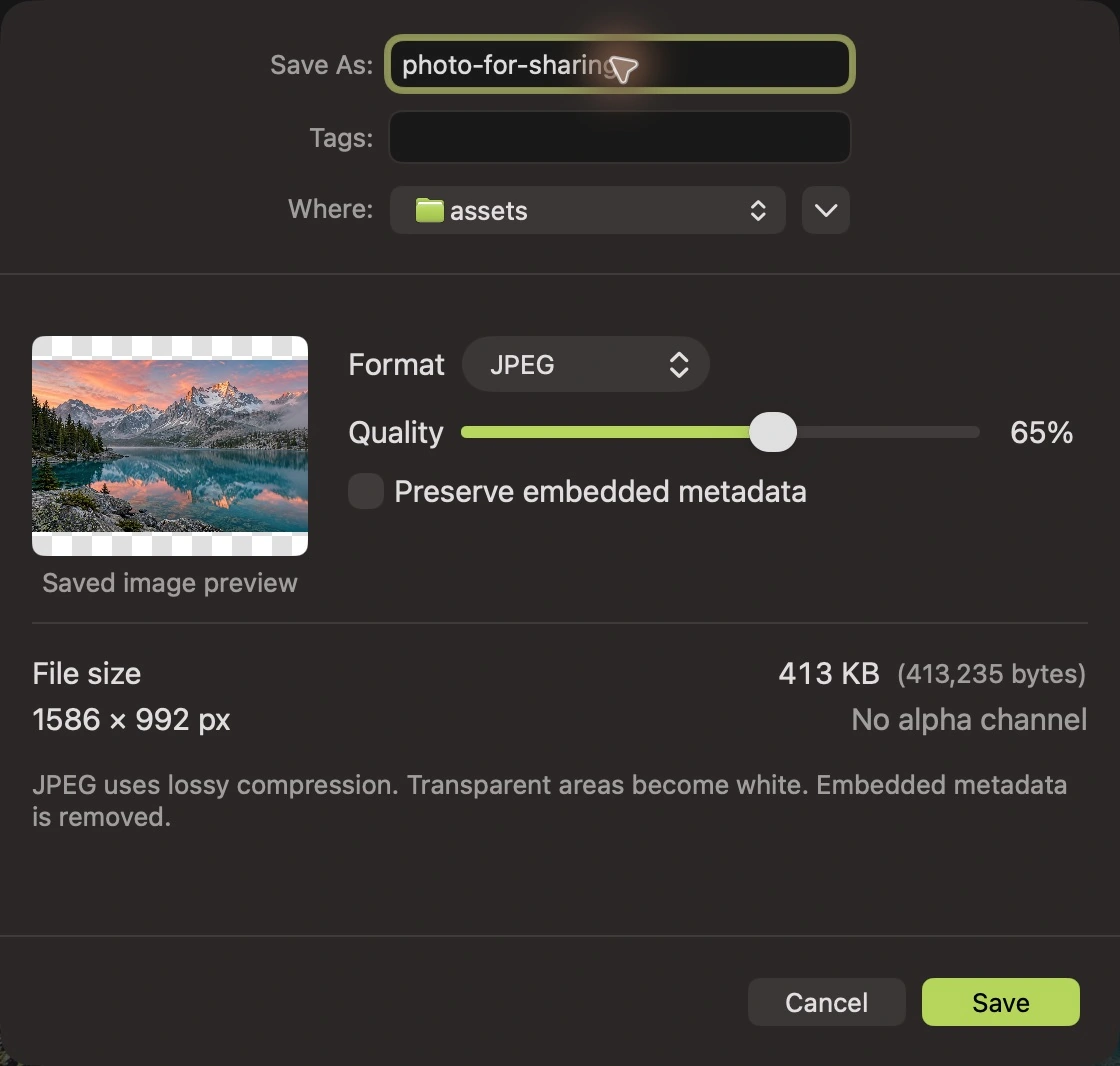
- Choose Save As. Click Save As or press Shift–Command–S. Give the sharing copy a suitable filename and destination.
- Select the output format. Choose a format accepted by the recipient. JPEG is useful for many photo-sharing tasks, while PNG can suit graphics and screenshots.
- Turn off Preserve embedded metadata. Clear the checkbox in the export options. For WEBP, preservation is unavailable because Montane omits embedded metadata for that format.
- Review the other export choices. Check dimensions and, for a lossy format, quality. Metadata removal does not make a lossy conversion pixel-identical.
- Save and inspect the new file. Open the exported copy, inspect the relevant embedded fields with an appropriate metadata viewer, and confirm its visible content and filename before sharing.
Inspect the exported copy
Open the new file rather than continuing to inspect the original. In Montane, Image Info provides image and available camera information, but it is not a comprehensive inventory of every possible metadata field.
For a second check on formats Preview supports, open the output in Preview and use the toolbar’s Info button. Its inspector includes general information and a more-information view for image information and available location data. Apple describes these controls in its Preview information guide.
Check the specific fields that matter to your use. A viewer that does not display a field is not proof that every possible embedded property is absent. If you need a complete technical inventory, use a metadata inspection tool that reports the relevant fields for that format.
Some output information is necessary to describe an image, such as dimensions and its encoding. A new file’s modification time is also not the same thing as an embedded capture timestamp. Expect the exported file to have ordinary technical and filesystem information even when the source’s optional embedded fields are not preserved.
Keep originals and attribution deliberately
Removing optional embedded fields from a sharing copy can also remove information you want to keep privately, such as camera details or capture time. Retain an original for your archive, and use a clearly named copy for the recipient.
If you have permission to use someone else’s image, follow the attribution requirements independently of this checkbox. Preserve a necessary credit in the surrounding page or delivery notes when required; an export setting does not decide the rights or credit terms for a photo.
For several files, Batch Convert provides a Preserve metadata option. Turn it off for the batch, then inspect the relevant output files. A large collection deserves checks that reflect the different input and output formats it contains.
Common questions
Is this the same as removing EXIF data?
EXIF is one kind of embedded image metadata. Montane’s preservation option concerns embedded source metadata more broadly. Inspect the exported result and the specific fields you care about rather than treating one acronym as a complete privacy check.
Can I keep metadata in WebP exports?
Montane’s WebP output omits embedded metadata and does not offer preservation for that format. Keep an appropriate original or choose a suitable workflow if embedded information must accompany the image. The WebP guide explains its other export choices.
Does this securely hide text in a screenshot?
No. Embedded fields and visible pixels are different. Montane blur and pixelation are not secure redaction guarantees. The screenshot annotation guide explains how to prepare a clear example without treating visual effects as verified removal.
Explore the app on the Montane home page, or browse all guides for your next image task.